Skip to content
Genixfile
Pricing
EnglishEspañolPortuguêsFrançaisDeutschItalianoРусскийBahasa Indonesiaالعربيةاردوहिन्दीবাংলা简体中文日本語
Log inSign up
Print guides

Why an AI image is not a print-ready file

A finished-looking image can still need editable text, correct dimensions and print settings before it is ready to send.

4 min read
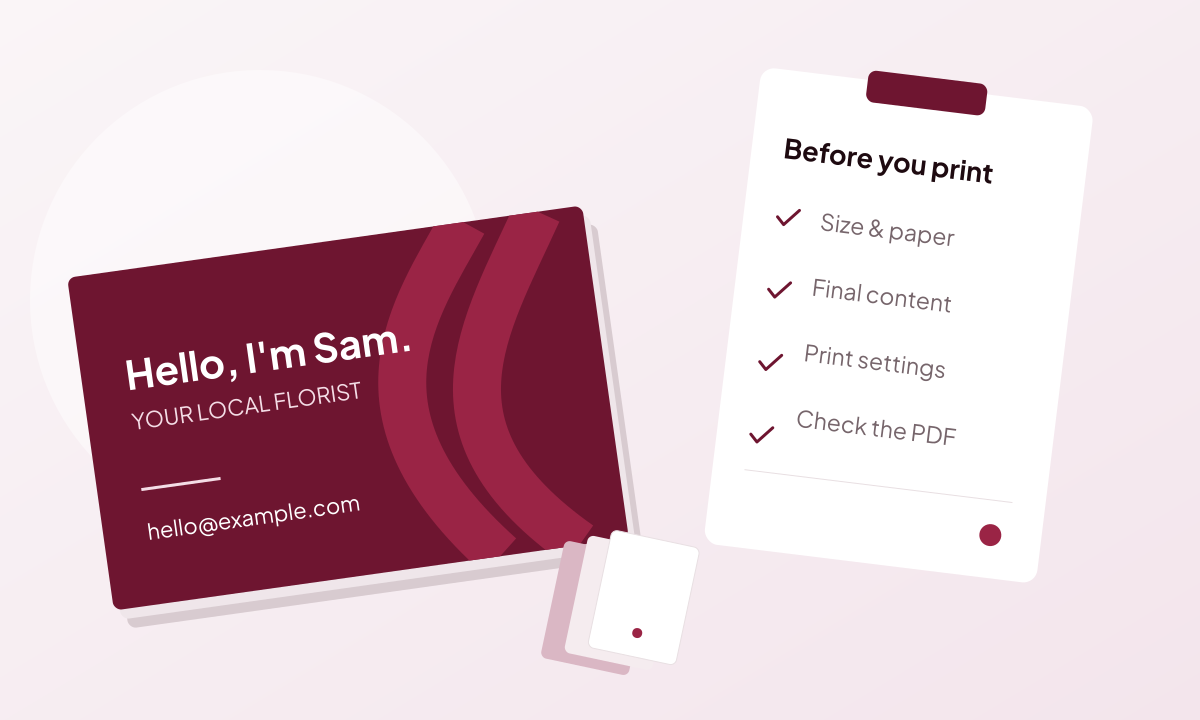
Business card, paper sample and a short print-order checklist

A finished image is not always an editable design

Many image generators deliver a single PNG or JPG. The lettering, background and other elements are part of that image, rather than separate objects you can select. Changing a price or replacing a logo can become a new generation or a manual rebuild.
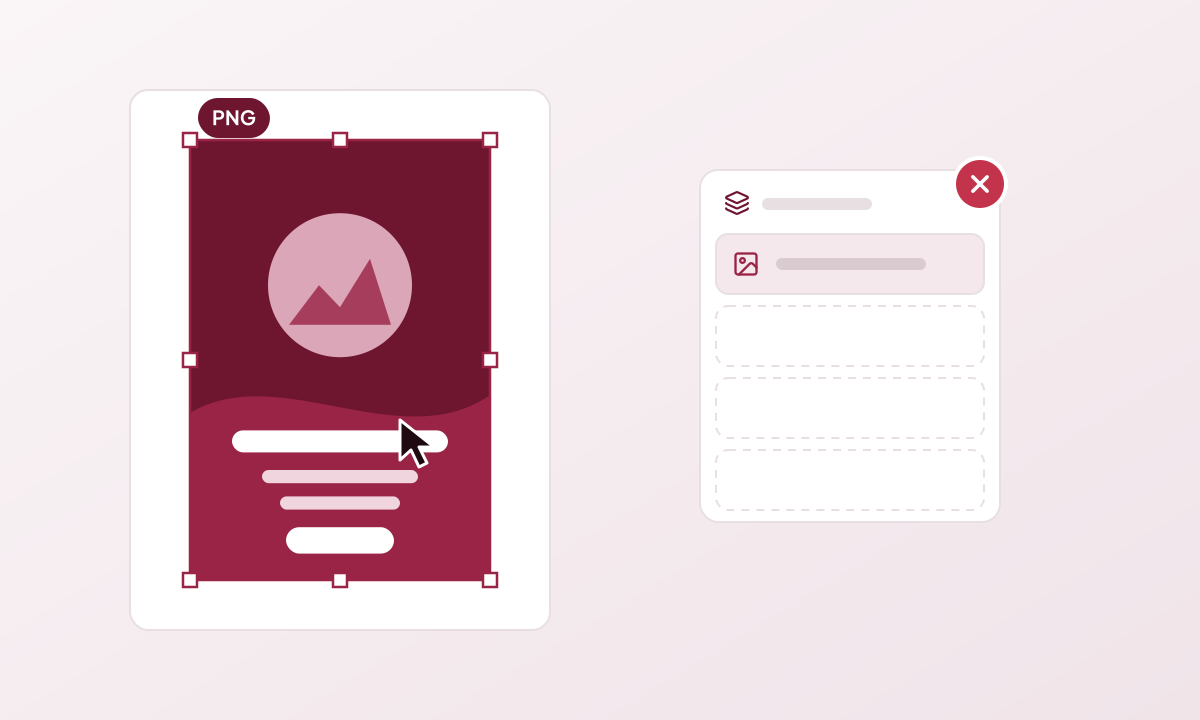
Flat flyer image selected as a single layer, with an empty layers panel
A flat image works as one piece: selecting the headline selects the whole picture.

Keep the parts you need to change editable

For a design you will use again, text, images and layout should remain separate where possible. That lets you update a date, change a colour or replace a photo without recreating everything. It also gives you control over the result instead of depending on another prompt.
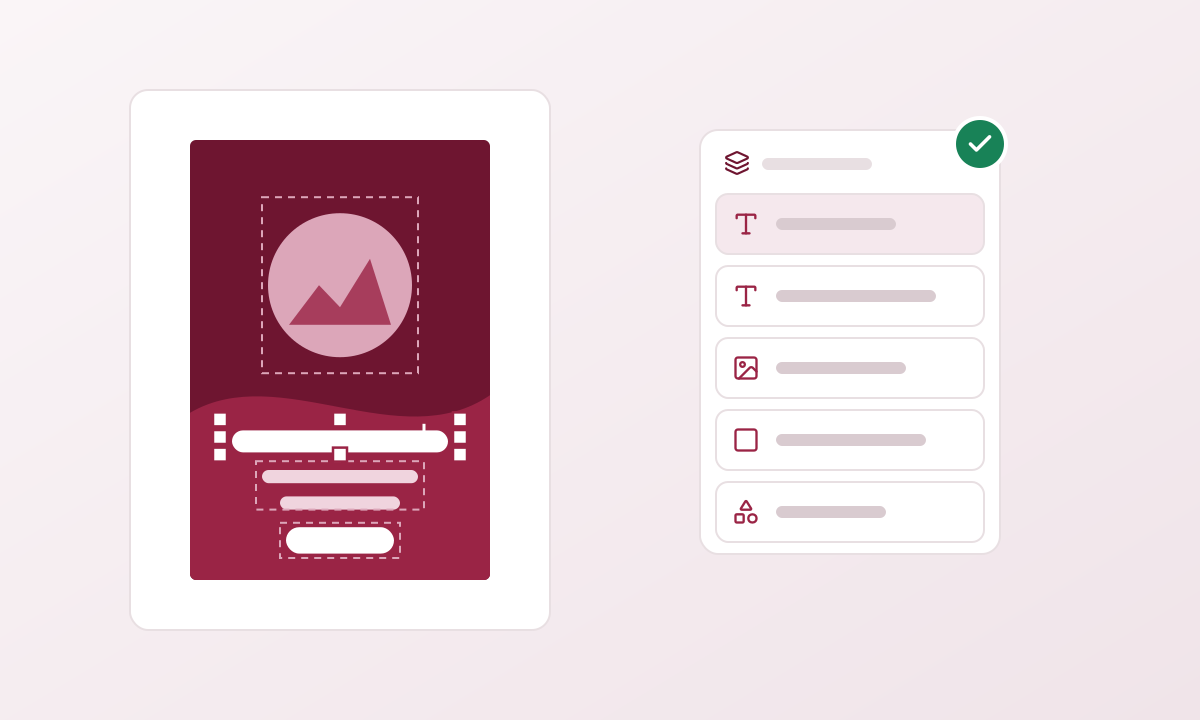
Editable flyer with separate text, image and shape layers in a layers panel
An editable design keeps headlines, photos and shapes as separate layers you can change.

Start with the printer’s requirements

A visually convincing flyer may still have the wrong dimensions. Set the finished size, bleed, safe margins and page arrangement from the printer’s specification. The design then has a clear format to work within.
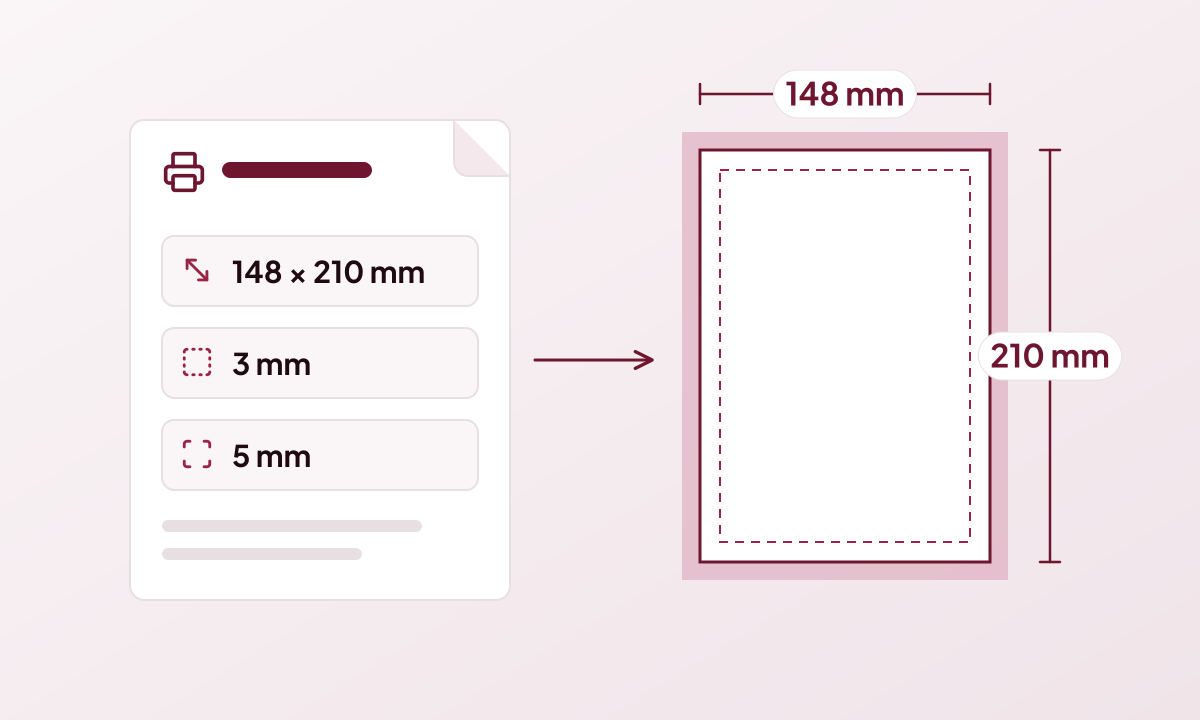
Printer specification listing 148 × 210 mm, 3 mm bleed and a 5 mm safe margin beside an A5 page with guides
Example specification: an A5 flyer, 148 × 210 mm, with 3 mm bleed and a 5 mm safe margin.

A PDF is a format, not a print guarantee

Putting an image inside a PDF does not make its lettering separately editable or fix missing bleed. Review the exported size, image quality, fonts and colour settings against the printer’s requirements. A file extension alone does not establish that the job is ready.
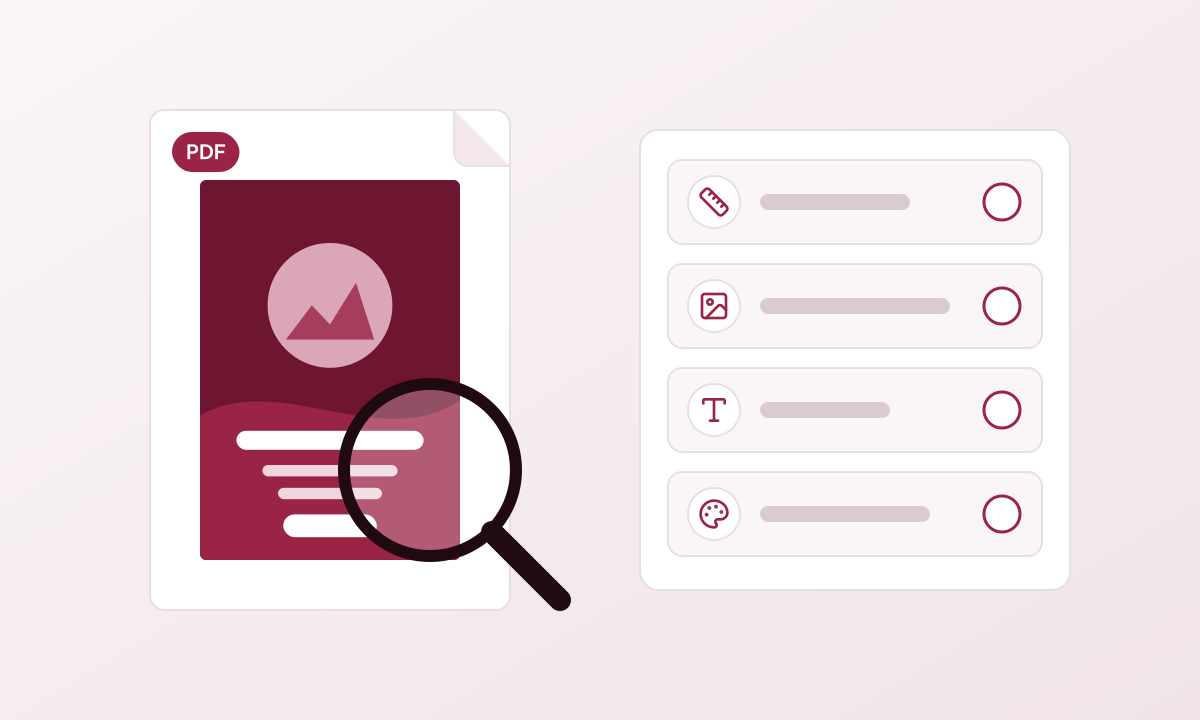
PDF flyer under a magnifier next to a checklist for size, image quality, fonts and colour
Before ordering, check the PDF’s size, image quality, fonts and colour.

Use AI for creation and manual tools for revisions

AI can help you explore a design direction. Once you have a result you like, changing a colour, adjusting text or swapping an image should be a direct editing task. In Genixfile, manual canvas changes and exports do not use AI credits.
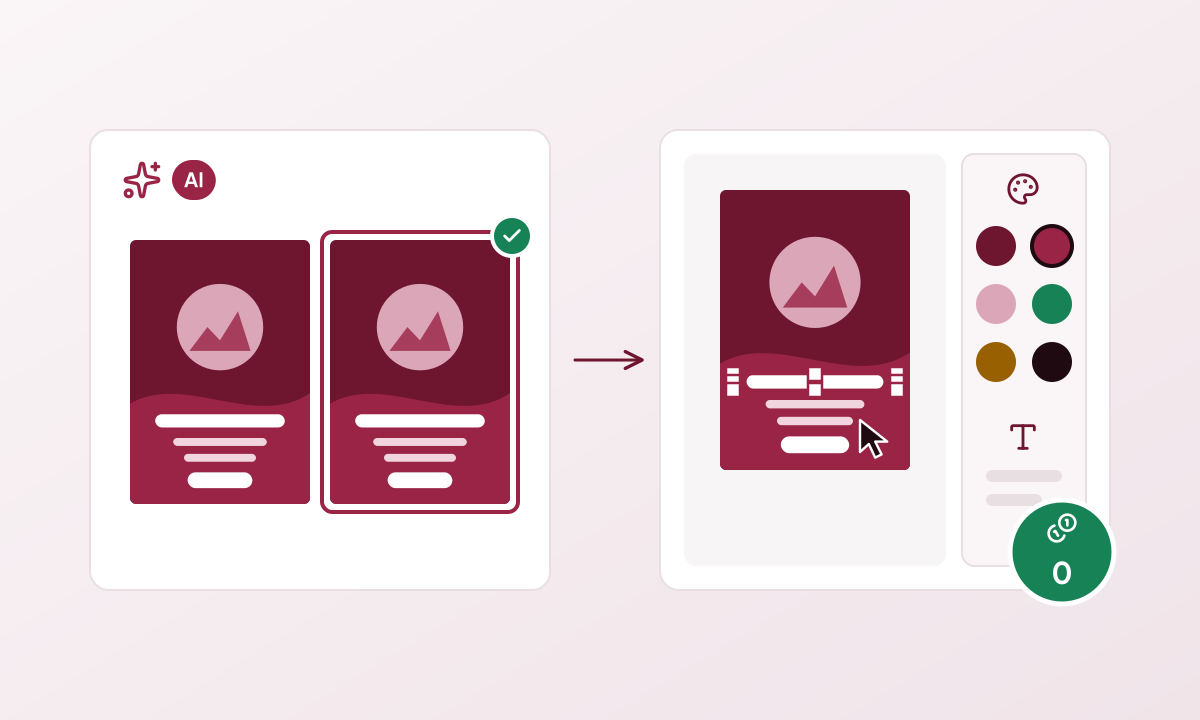
Two AI flyer directions beside a canvas where colour and text are edited for 0 credits
AI suggests the directions; changing a colour or a line of text in the canvas uses no credits.

The workflow Genixfile is built around

Genixfile brings AI design generation, editable artwork and print preparation together. Start from print requirements, choose a design, make revisions in the canvas and check the file before export. The goal is to keep the result useful beyond the first generation.
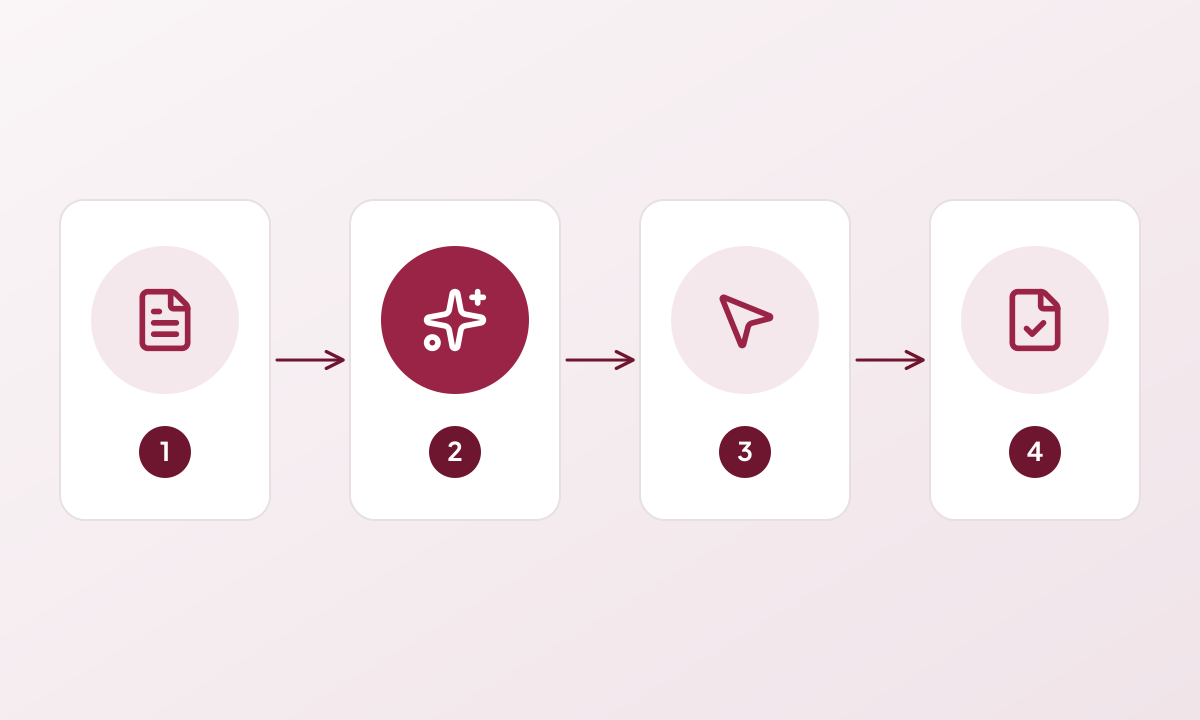
Four steps: printer requirements, AI design, canvas editing, then checks and export
Printer requirements, AI design, editing in the canvas, then checks and export.

Keep the editable project as well as the export

Save the project you can revise alongside the file you send to print. When the offer, date or contact information changes, you can update the relevant content rather than starting over. Importing a flattened image does not, by itself, recover its original editable objects.
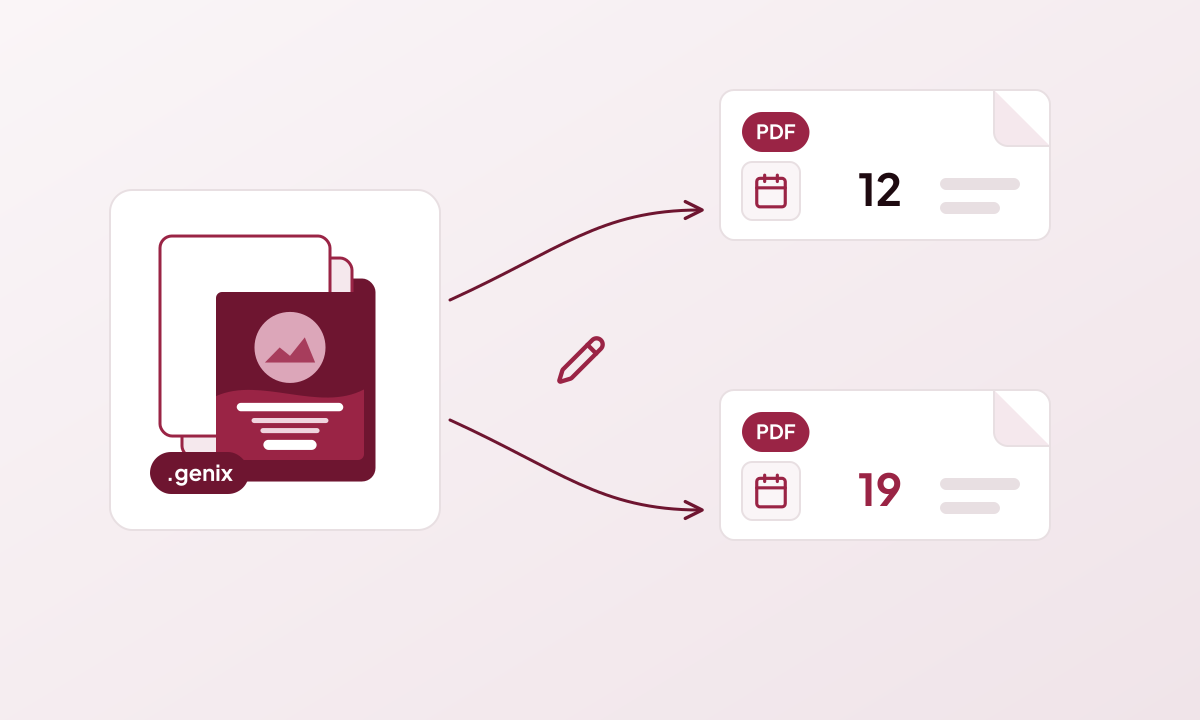
Editable Genixfile project exporting two PDFs with different dates
Keep the editable project: when a date changes, edit it and export a new PDF.

Common questions

Is an AI-generated image print-ready?

Not on its own. It also needs the printer’s size, bleed and safe area, enough resolution at the printed size and, ideally, editable text before it is exported as a PDF your printer accepts.

Why should text stay editable in a print design?

Editable text lets you fix a typo, change a price or update a date without generating the whole design again. It also stays sharp in the exported PDF.

Does saving as PDF make a file print-ready?

No. A PDF can still have the wrong size, no bleed or low-resolution images. Check it against your printer’s specification before ordering.
Further reading

  • Create an editable print design
  • What is free, and what uses credits?
  • PDF Association: ISO 15930 (PDF/X)

More print guides

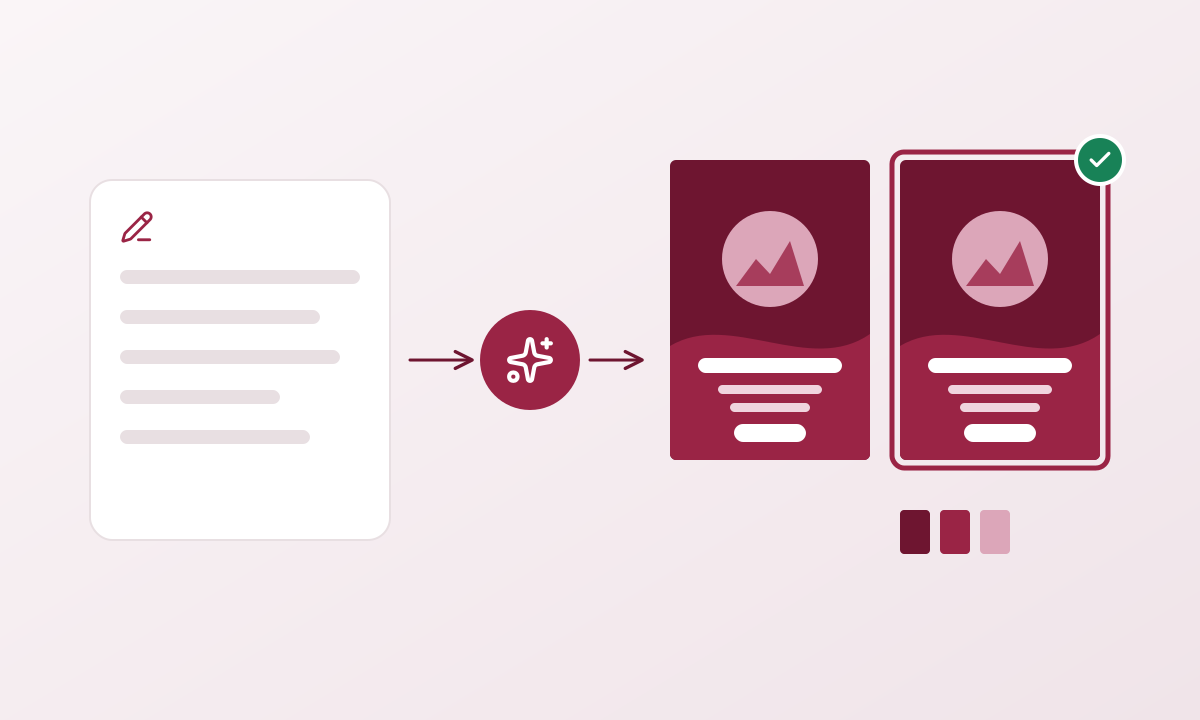
A short brief becoming two design choices and a complete multi-page print design
AI design3 min read

How the Genixfile AI design flow works

From a short brief to a complete, editable print design in six steps, with the cost of every AI step shown before it runs.

Read guide
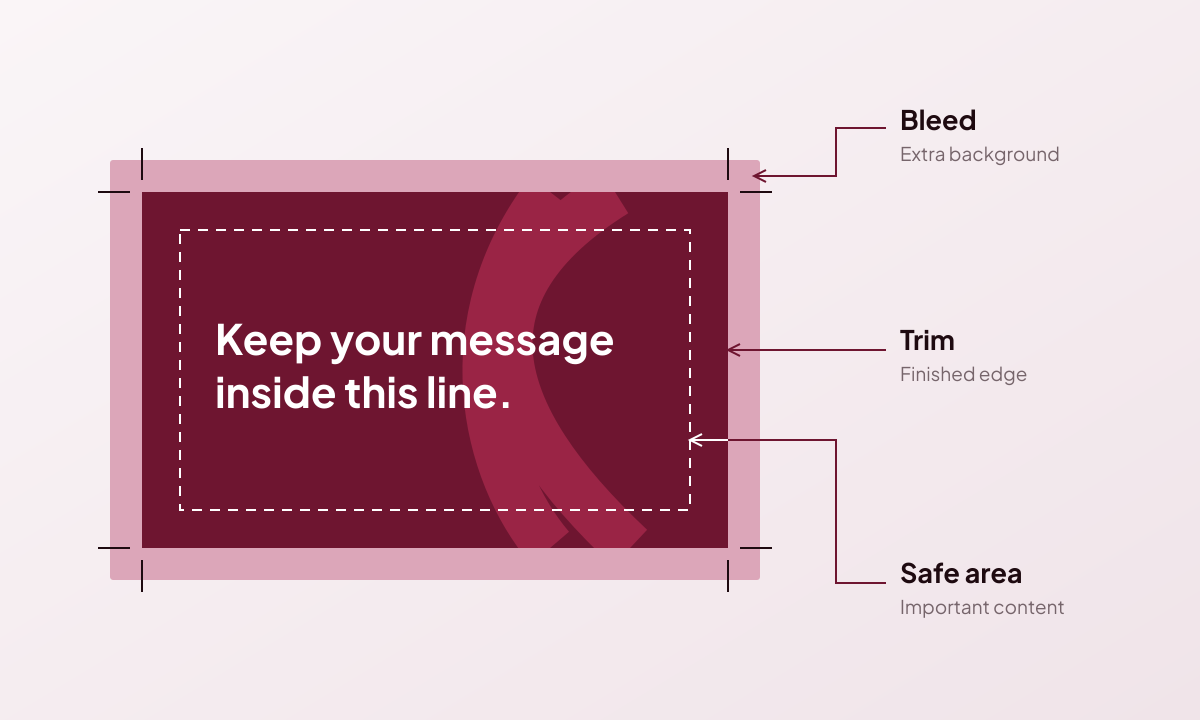
Three nested boundaries showing bleed outside the trim and a safe area inside
Print basics3 min read

Set bleed and margins before printing AI designs

Give your design the right finished size, extend backgrounds past the cut and keep important content inside the safe area.

Read guide
The same botanical picture shown clearly and as an enlarged low-resolution image
Image quality3 min read

Keep AI-generated images sharp in print

Check the resolution at the size you will print, rather than judging an image only by its on-screen preview.

Read guide
Genixfile

Create with AI, refine with Ask Genix and prepare your design for print. Manual tools are there whenever you want them.

Occasional tips and new features. Unsubscribe anytime.

Products

Business cardsFlyers & sheetsBrochuresPostersPostcardsPackagingAll print products

Create

Create for PrintFree canvasMy projectsFirst design guidePrint checksColour profilesHow Genixfile works

Explore

About GenixfileArticlesPlans & creditsHelp center

The essentials

Print preparationTerms of useRefund policyAcceptable usePrivacyContact usSend feedback
EnglishEspañolPortuguêsFrançaisDeutschItalianoРусскийBahasa Indonesiaالعربيةاردوहिन्दीবাংলা简体中文日本語
© 2026 Genixfile.com. All rights reserved.