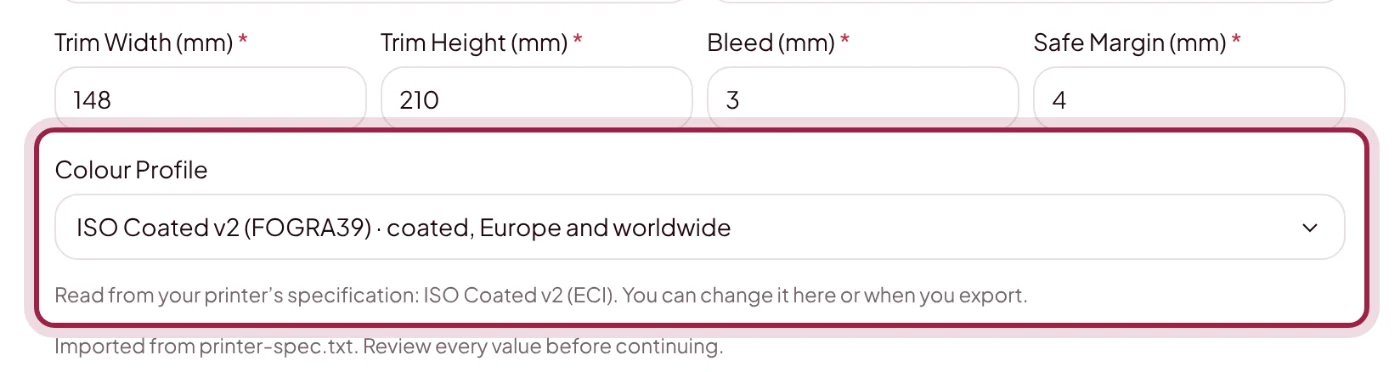
Colour profiles and print view
Understand CMYK, separations and on-screen proofing.
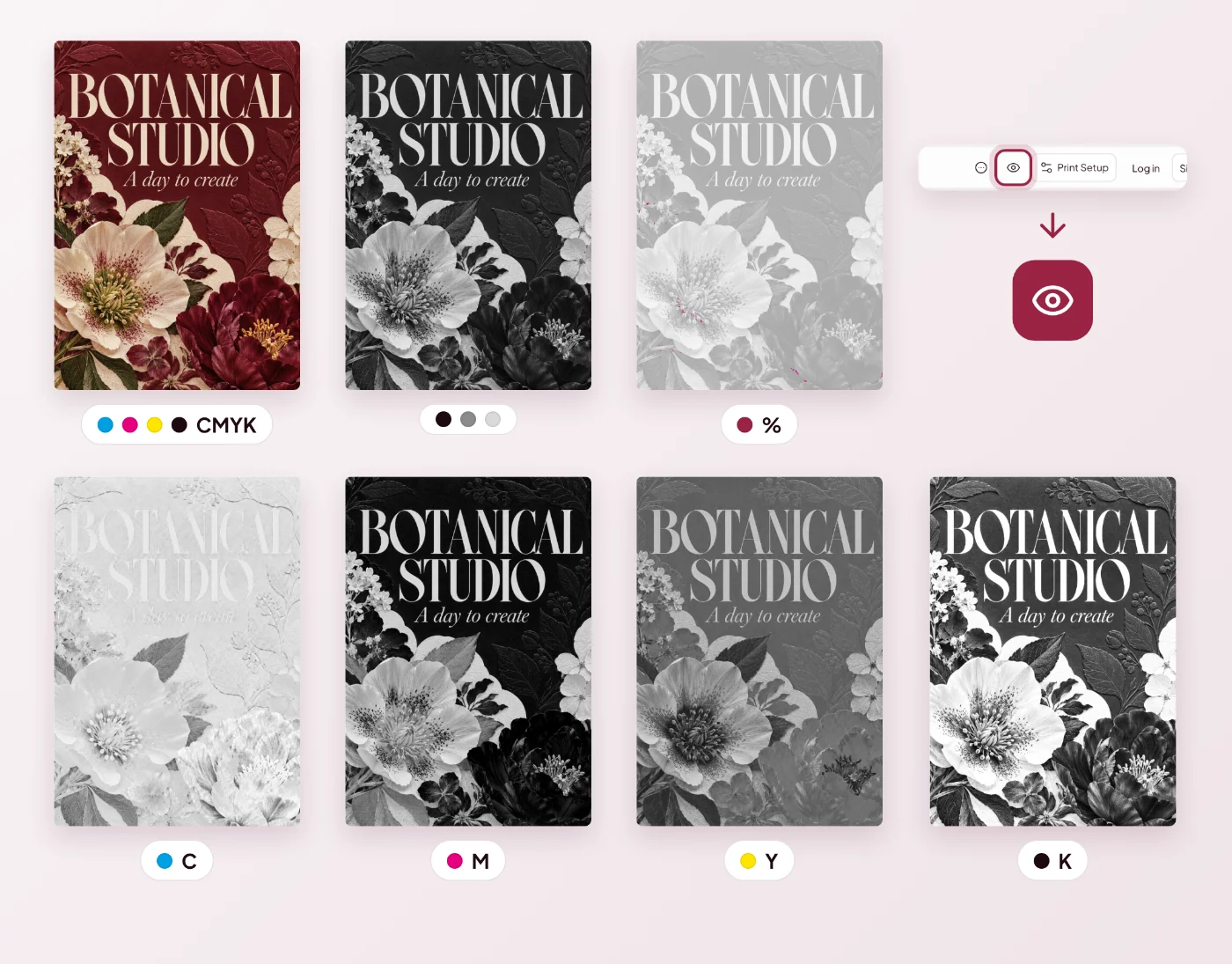
How Do I Preview CMYK Colour?
Open Print View with the eye icon at the top right to see the selected page as a CMYK soft proof, in greyscale, as ink coverage or as single CMYK plates. Choose your printer’s colour profile in Export, under For Your Printer.
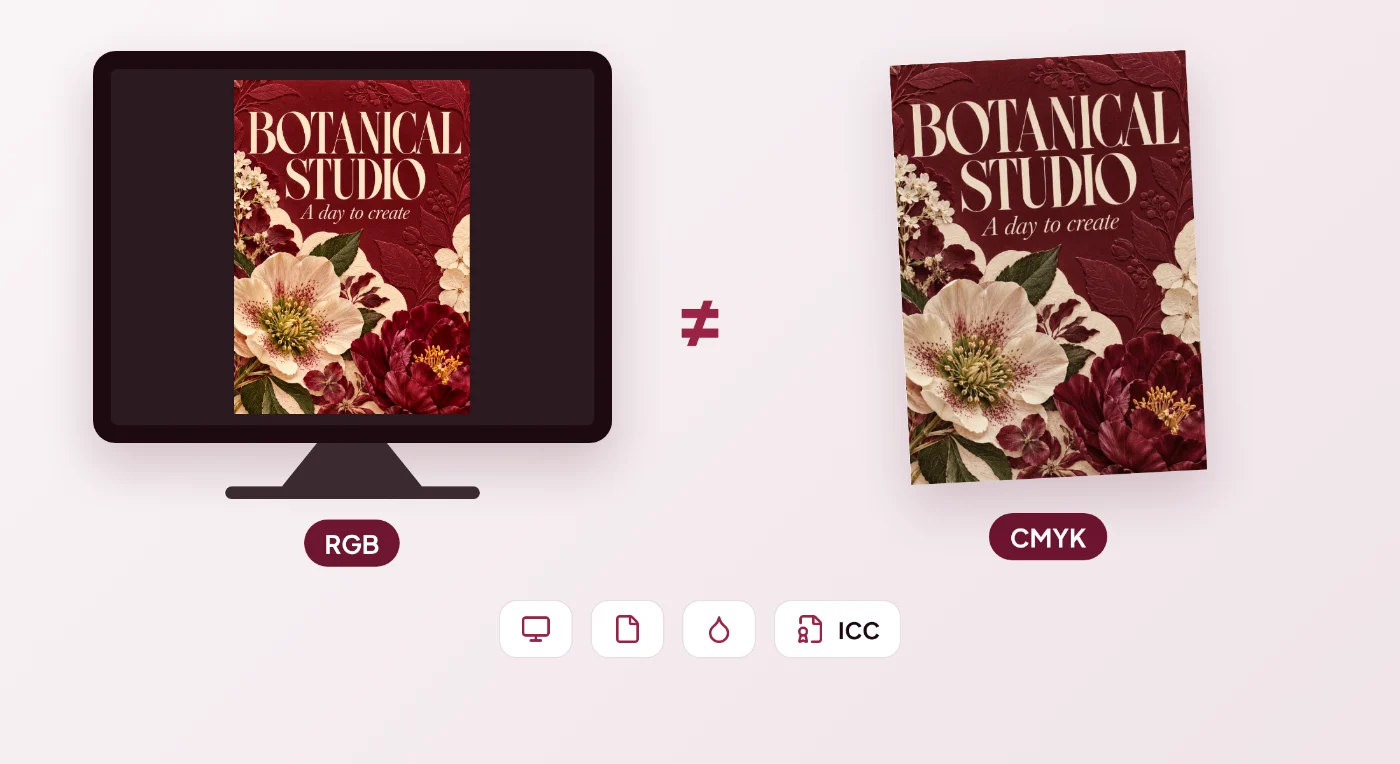
Why Does Printed Colour Look Different From the Screen?
Screen colour and printed colour are different. Your display, paper, ink and printer profile all affect the result. A screen preview is not a certified physical proof.
Which PDF/X Setting Should I Choose?
Only choose PDF/X settings supported by your printer. Review the export validation result and confirm the printer condition before production.
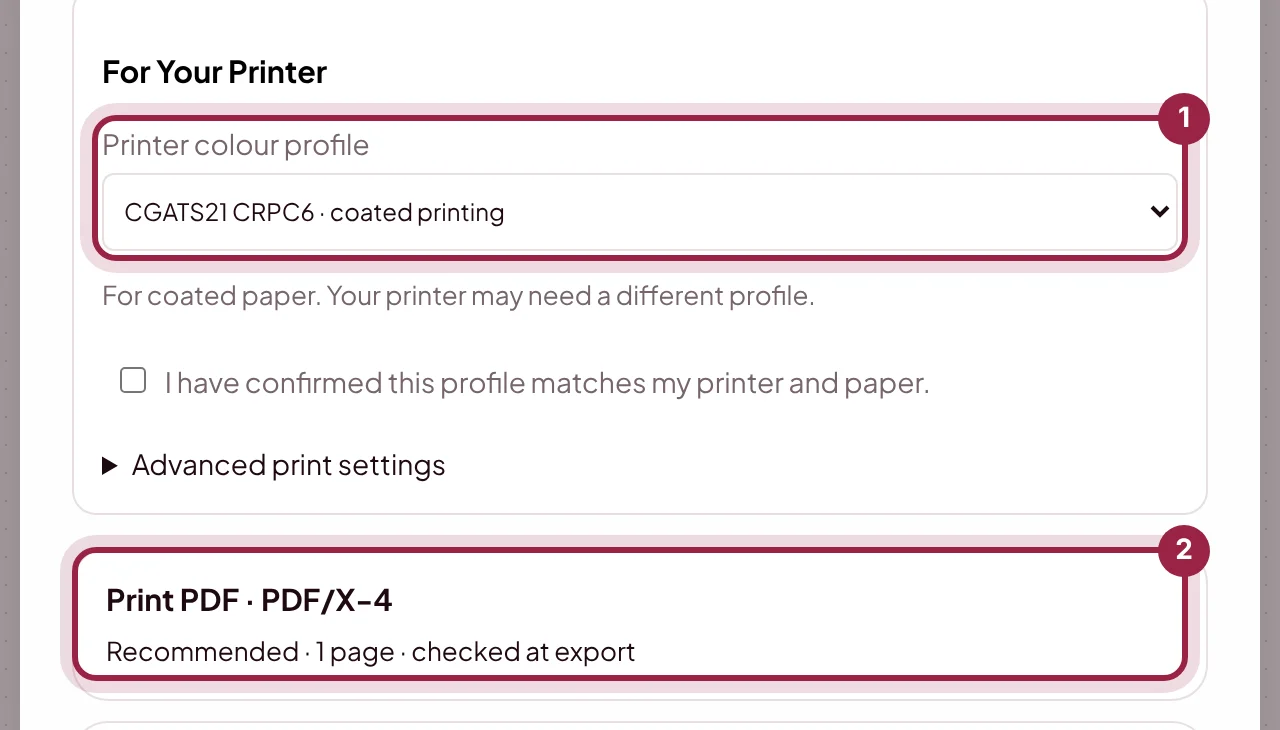
- Printer colour profile: the ICC profile Genixfile uses to turn your colours into CMYK. CGATS21 CRPC6 for coated paper is the default. You can also choose ISO Coated v2 (FOGRA39), PSO Uncoated (FOGRA47), GRACoL 2013 Uncoated or SWOP 2013, or upload the profile your printer gives you. Tick the box once you have confirmed it with your printer.
- Print PDF · PDF/X-4: the recommended print file. It keeps your fonts, transparency and colour profile inside the PDF, and Genix checks the file when you export. Choose CMYK PDF only if your printer asks for a regular CMYK PDF.
Can Genixfile Use the Colour Profile From My Printer’s Specification?
If your printer’s specification names a colour profile, Create for Print selects it for you. You can see and change it under Colour Profile before your brief, and again in Export.